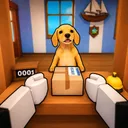
Mail Simulator Roblox How to Load the Ship
Get sorted mail onto the departure vessel before the island post office misses payout.

Loading the ship is the payoff moment in Mail Simulator on Roblox. You served customers, sorted packages into staging lanes, and now the vessel at the dock waits for cargo before sailing to the next island stop. MEROYst times departures with visible countdowns and audio cues—miss the window and coins stay on the table while the loop resets. This guide covers dock layout, carry limits, co-op handoffs, and recovery tactics when the horn catches you mid-run.
New players should skim Getting Started and Controls first; veterans pair this with Earn Coins Fast to chain departures back-to-back.
Why ship loading matters
Each departure converts staged mail into:
- Base shift payout scaled by number of correctly sorted pieces loaded
- Timer bonuses for early completion before countdown hits zero
- Combo multipliers when prior counter and sort phases stayed error-free
Leaving crates on the sort floor when the ship leaves is the single biggest silent income leak. Sorting perfection means little if nobody runs the dock.
Know the departure signals
Mail Simulator typically warns you three ways:
- UI countdown near screen edge or dock billboard
- Ship horn or bell audio cue
- NPC captain callout or flashing ramp prompt
Treat horn as “load phase starts,” not “panic only if you hear it twice.” Elite players move toward staging carts when countdown enters the final minute, not the final ten seconds.
Patch changes to timers appear in Updates—MEROYst may shorten holidays events for difficulty spikes.
Dock layout basics
Island post offices usually place:
- Staging carts a short walk from sort tables
- Ramp or crane interact zone on the ship side
- Optional conveyor button if MEROYst automates bulk transfer
Learn the shortest collision-free path from your main sort table to ramp. Jumping off boardwalk edges or cutting through customer queues slows everyone on busy servers.
Heavy parcels may restrict sprint—factor walk speed into timer math. Large boxes sometimes require two-step loading: place on cart, then cart to ship.
Solo loading routine
- When countdown hits ~60 seconds, stop counter unless one customer blocks spawn.
- Grab highest-value staged stack first—express if labeled.
- Walk ramp until “Load” prompt; confirm placement.
- Return for next stack; prioritize quantity over perfect order if timer tight.
- After departure animation, sprint back to counter for next cycle.
Solo players alternate sort and load every other cycle early game; mid game stands let you stay on dock longer while income rises.
Co-op loading roles
With up to five friends, dedicate Dock Captain and Runner roles—full detail in Co-op Roles:
- Runner moves carts from sort floor to ramp foot.
- Dock Captain interacts with ship load zones—only one player needs ramp access if prompts are single-threaded.
- Sorter keeps staging full but never crosses ramp during final five seconds unless empty-handed.
Use the Co-op Board before queueing so strangers in twenty-player servers do not block the ramp simultaneously.
Partial loads and failure recovery
If the ship leaves with partial cargo:
- Leftover staged mail often rolls to next departure—verify UI message; do not duplicate sort effort.
- Missed timer may apply penalty multiplier—note percentage in post-shift summary for learning.
- Next cycle — assign extra dock time; temporarily ignore low-priority sort slots.
Never rage-quit mid-penalty—finishing the shift still teaches timing for free retry in Roblox public servers.
Optimizing load value
- Load complete destination sets if bonus text appears (“Full resort batch +10%”).
- Avoid loading mis-sorted parcels—some builds reject them at ramp with error animation costing seconds.
- Sync with sort priority rules so express is always at cart top for runner grab.
Compare stand upgrades that affect dock speed versus sort speed in Tier List: Stands.
Platform-specific dock tips
PC — click load prompts fast; camera angle down toward ramp lip.
Mobile — pre-walk path without carrying; tap load button early as you approach zone edge.
Console — use shift lock down plank; assign console players dock role consistently.
Practice goals
Track three metrics over an evening:
- Percent cargo loaded per departure (aim 100%)
- Seconds early before countdown zero
- Coins per departure from summary screen
Improve one metric per session—trying all three at once frustrates co-op teams.
Related guides
- How to Sort Packages — feed the dock
- Earn Coins Fast — chain departures profitably
- Shift Checklist — tick box each successful load phase
Frequently Asked Questions
Quick answers about Mail Simulator sorting, ship loading, and co-op play.
What happens if the ship leaves before I finish loading?
You typically lose timer bonuses and may leave staged mail for the next cycle with a reduced payout multiplier for that departure.
Can multiple players load the ship at once?
Often yes if load zones are separate stacks, but crowding the same ramp prompt causes interaction conflicts—coordinate roles.
Do I need to load every package type?
Load all staged mail tied to the current departure when possible. Optional junk mail, if added in events, may differ—read on-screen objectives.
Does the ship schedule change after updates?
MEROYst may tune countdown length in patches—check Updates hub after each major release.