Mail Simulator Roblox Mail Simulator Controls
Every input for serving customers, sorting mail, and loading the ship on any device.
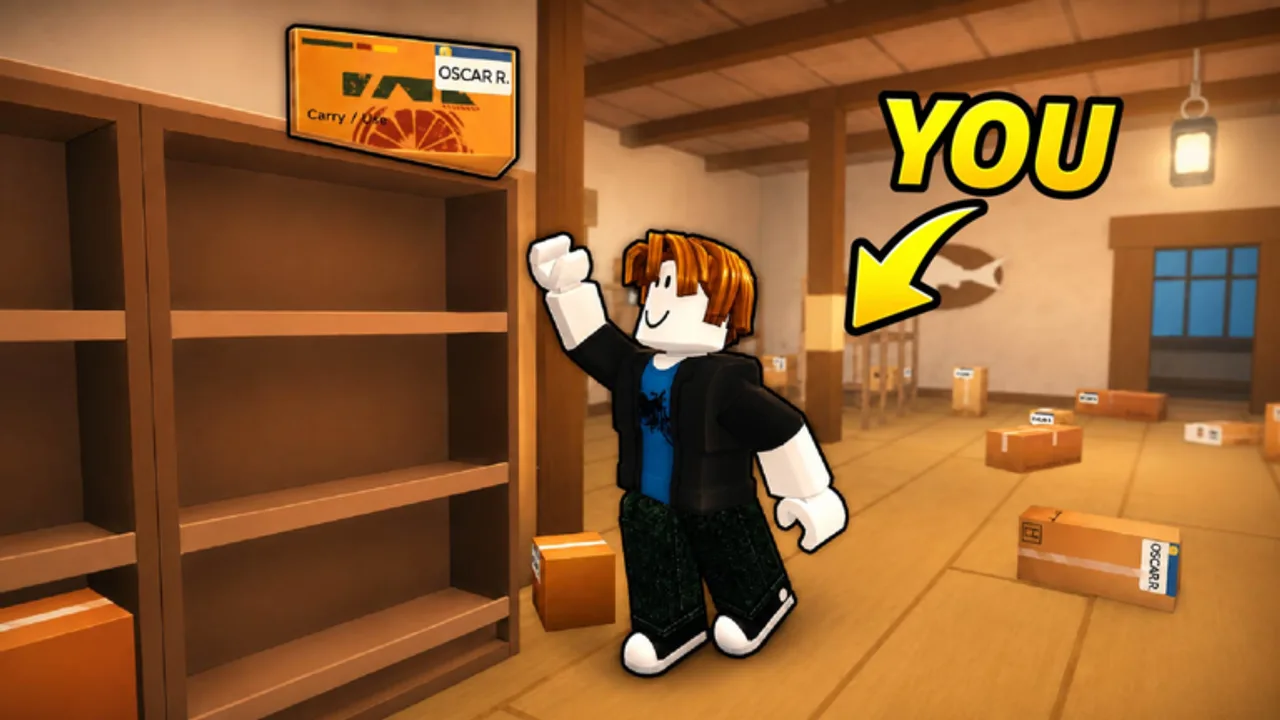
Smooth controls separate a profitable Mail Simulator shift from a chaotic one. MEROYst built Dog Mail as a hands-on Roblox sim—you walk the island post office, interact with customers, grab parcels, and haul cargo to the ship. This guide documents the standard Roblox control scheme plus Mail Simulator-specific interactions so PC, mobile, and console players share the same vocabulary when co-oping.
If you have never played, finish Getting Started once, then keep this page open during your second shift while muscle memory forms.
PC controls (keyboard and mouse)
Roblox PC defaults apply unless MEROYst rebinding menus appear in settings:
| Action | Default input |
|---|---|
| Move | W A S D |
| Jump | Space |
| Camera | Mouse move |
| Zoom camera | Scroll wheel |
| Interact / pick up | Left click on prompt or E key near objects |
| Drop / place item | Click destination zone or release key shown in UI |
| Sprint (if enabled) | Left Shift |
| Open Roblox menu | Esc |
| Chat | Enter |
Customer counter — Stand within the highlighted zone; click the customer or register when the prompt appears. Some registers require clicking item icons on the UI panel instead of the NPC.
Packages — Click a box to pick up; your avatar plays a carry animation. While carrying, movement may slow—path sorting tables without jumping into furniture. Click a valid table slot to place; invalid slots flash red or reject the drop.
Ship loading — Interact with cart stacks or conveyor buttons if present, then walk up the ramp until the “Load” prompt shows. Heavy stacks may need you to stop sprinting for stability—watch your character speed.
Tip: Lower mouse sensitivity helps precise clicking in crowded co-op servers where five players share narrow back rooms.
Mobile controls (touch)
Mail Simulator on phone or tablet uses Roblox mobile defaults:
| Action | Input |
|---|---|
| Move | Left virtual thumbstick |
| Camera | Drag right side of screen |
| Jump | Jump button (if shown) |
| Interact | Tap on-screen action button when near objects |
Mobile players excel at customer service because tap prompts are large; sorting fine zones can be harder. Zoom camera before placing small parcels. Play in landscape for wider view of the sort floor.
If taps misfire, disable Roblox “dynamic thumbstick” in settings and rejoin—desynced controls often trace to partial updates on patch days tracked in Updates.
Console / gamepad
Xbox and compatible controllers map roughly to:
| Action | Xbox layout |
|---|---|
| Move | Left stick |
| Camera | Right stick |
| Jump | A |
| Interact | X or contextual button |
| Back / menu | Menu / View buttons |
Console players should volunteer for dock and runner roles in co-op—wider stick dead zones make pixel-perfect table sorting tougher than on mouse. See How to Load the Ship for pathing that minimizes sharp turns.
Interaction priorities during a shift
Controls matter only if you know when to press them:
- Counter prompt active — interact before walking away; abandoned prompts reset customer patience.
- Package in hands — you cannot serve until you drop or load; plan routes.
- Ship timer under 30 seconds — prioritize movement keys over sorting finesse; partial loads beat perfect tables that miss departure.
- Co-op callouts — voice chat reduces double-pickups; two players grabbing one box wastes animation time.
Practice the triangle route: counter → sort table → staging lane → dock. Repeat until you can traverse without reading signs.
Camera and visibility tricks
- Raise camera slightly to see queue length while at the register.
- In third person, stand sideways to table slots so your hitbox does not block teammates.
- Toggle first person only for tight shelf gaps—most Mail Simulator stations are third-person friendly.
If pop-in hides distant dock timers, walk toward the waterline until the UI appears—Roblox culling sometimes hides timers until proximity on low graphics.
Accessibility and settings
Check Roblox Settings → Accessibility for:
- Reduced motion if ship horn flashes trigger discomfort
- Larger UI text on mobile for destination labels
- Shift lock toggle for cleaner forward movement down dock planks
Mail Simulator-specific sliders (if MEROYst adds them) may include carry speed or hint frequency—enable hints during first week, disable once you read How to Sort Packages fluently.
Controls and coin efficiency
Input speed caps your Earn Coins Fast potential. Benchmark yourself:
- Time one customer serve from approach to payout.
- Time one sort cycle from pickup to correct slot.
- Time one dock run from staging to load confirm.
Cut the slowest segment first—usually sorting on mobile or counter backlog on PC when players ignore queue.
Related guides
- Getting Started — where controls fit in the loop
- How to Sort Packages — table-specific inputs
- How to Load the Ship — dock movement and timing
- Co-op Roles — who should use which device strengths
Frequently Asked Questions
Quick answers about Mail Simulator sorting, ship loading, and co-op play.
Can I rebind Mail Simulator controls on PC?
Roblox supports limited remapping in Settings. Mail Simulator may add its own control menu—check the in-game gear icon after tutorial completion.
Why will my character not pick up packages?
You may be too far from the hitbox, already carrying max items, or in a tutorial step that locks interactions. Reapproach and watch for the prompt icon.
Is keyboard or mobile better for Mail Simulator?
PC mouse excels at sorting precision; mobile works well for counter duty. Co-op teams often mix devices by role.
Does shift lock help in Mail Simulator?
Many players enable Roblox shift lock for straight-line runs to the dock, especially on narrow island paths.